Factories
Managing team membership
Create or join a Warp team, invite colleagues, and manage membership for shared factories, cloud agents, and Warp Drive resources.
A Warp team groups people and resources so you can manage membership, access, and settings together. Team members can share factories, environments, secrets, and Warp Drive content. Teams are available on self-serve and Enterprise plans.
For example, teammates can submit work to a shared factory instead of each creating their own. Membership, administrative roles, and factory access are separate controls. See Roles and permissions.
Teams and workspaces
Section titled “Teams and workspaces”On self-serve plans, your team is the group you manage. It has one owner and, on supported plans, additional team admins. Some billing or shared-setting screens use “workspace” for that team’s administrative scope; you do not manage a separate set of workspace roles.
Enterprise workspaces can contain multiple teams. Workspace admins manage company-wide settings and team organization, while team admins manage their own teams within those policies. An Enterprise workspace with one team can still use this independent administration model.
See Workspaces for Enterprise teams for workspace membership, roles, and team visibility.
Creating a team
Section titled “Creating a team”If your self-serve account has no team, initial setup in the Warp Factories web app can create your first team:
- Sign in. If setup lists discoverable teams, choose Create a new team and enter a team name when requested.
- Click Build your first Factory. If setup does not show a team-name field, Warp creates a default-named team. After completing setup, confirm the selected team in the account menu.
If setup says “Contact an admin to join a team,” ask your admin for an invitation. The factory account menu’s New Team control is for Enterprise workspace administration, not a general self-serve team-creation route.
To create a self-serve team in the Warp app:
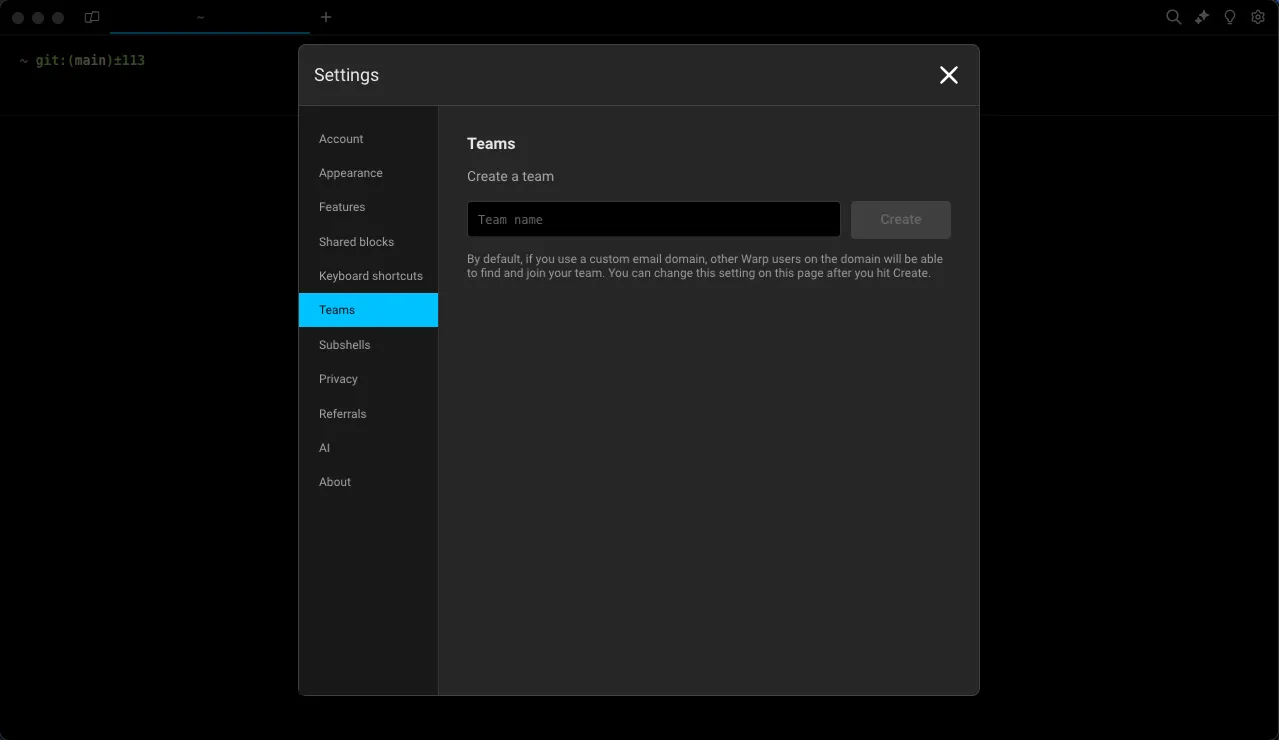
- Open Settings > Teams, or open Warp Drive and click + Create a team.
- Enter a name that colleagues will recognize and complete the creation flow.
- Confirm the new team appears in Settings > Teams.
The creator becomes the team owner. Adding an admin later does not transfer ownership.
In an Enterprise workspace, a workspace admin creates teams from the Admin Panel. See Teams inside a workspace.
To rename a self-serve team, open Settings > Teams in the Warp app. Click the team name, enter the new name, and press Enter.
Inviting team members
Section titled “Inviting team members”Check the billing consequence for your product before sharing an invitation:
- Warp Terminal and local agents - Paid per-seat subscriptions include all active members. Adding a member adds a prorated seat charge. See member billing.
- Warp Factories - Start uses purchased usage without a subscription; Scale uses one team subscription rather than per-member subscription fees. Members’ factory runs consume shared funding, so additional activity can increase usage charges. See factory plans and funding.
- Enterprise - Membership charges and usage funding follow your contract.
Self-serve team owners and admins can invite colleagues in a browser:
- Open the Admin Panel, confirm the intended team, and click Teams.
- Under Invite by Email, enter the addresses and click Send. Confirm they appear as pending invitations.
- To share a link instead, enable Invite by Link if needed. Click the copy control beside the link and share it through a secure channel.
Non-admins can ask an owner or admin for an invite link. In the Warp app, the link is also available under Settings > Teams.
For Enterprise invitations, including adding people to Hidden teams, follow Joining a workspace or team.
Restricting team invites by domain
Section titled “Restricting team invites by domain”Team owners and admins can restrict joining through self-serve invite links to approved email domains:
- In the Warp app, open Settings > Teams.
- Toggle Restrict by domain on.
- Add the allowed email domains.
In the browser Admin Panel, open Teams and enable Invite by Link. Under “Restrict by domain,” enter an approved domain and click Add. Confirm the domain appears in the list.
Someone joining through a link with an address outside the allowed domains must verify access to an address on an allowed domain.
Joining a team
Section titled “Joining a team”Open the invitation link in a browser and sign up or sign in with the invited account. Check the team name and click Join team. For restricted-domain links, complete the requested email verification first.
Return to the Warp Factories web app, reload if needed, and confirm the joined team appears in the account menu. Email invitations must match the invited email address and be unexpired; ask an admin for a new invitation if needed.
Workspace membership does not automatically make you a member of every Enterprise team. For team discovery and workspace invitations, see Workspaces for Enterprise teams.
Team discoverability
Section titled “Team discoverability”For eligible self-serve teams, an owner or admin can let colleagues with the same email domain find and join the team without a direct invitation.
In the Warp app, open Settings > Teams and toggle Make team discoverable on. In the browser Admin Panel, open Teams and enable Team Discovery when that control is available. People who join this way follow the same product-specific billing rules as invited members.
Team roles and permissions
Section titled “Team roles and permissions”Team owners and admins manage membership and the settings available on their plan. Members use shared resources within the applicable policies.
See Roles and permissions for role definitions, multiple-admin availability, and changing a role. To configure shared settings, open the Admin Panel.
Transferring team ownership
Section titled “Transferring team ownership”Only the current self-serve team owner can transfer ownership to another member. Follow Transferring team ownership. The previous owner becomes a Member.
Independent Enterprise workspace ownership is a different operation. Follow Changing workspace roles.
Leaving and deleting teams
Section titled “Leaving and deleting teams”In a self-serve team, members and admins can leave from Settings > Teams in the Warp app. An owner must transfer ownership before leaving or deleting their Warp account.
To delete a self-serve team, the owner must first remove the other members.
Enterprise workspace membership is managed separately from team membership. Ask a workspace admin to remove you from an Enterprise workspace.
Purchased usage when membership changes
Section titled “Purchased usage when membership changes”Purchased usage stays tied to the team that bought it. Leaving or being removed ends your access to that balance; rejoining restores access to unused, unexpired usage. Rejoining a per-seat subscription also adds a prorated seat charge.
See usage when team membership changes. Enterprise pools follow your billing agreement.
Managing a team without Warp Terminal
Section titled “Managing a team without Warp Terminal”In the Warp Factories web app, owners and admins open Admin panel from the account menu. In the Admin Panel, choose Teams for the membership procedures above or Billing for shared funding.
For your access level and an admin handoff, see Checking your role. For role changes, follow promoting admins or transferring ownership.
Related pages
Section titled “Related pages”- Roles and permissions - Identify the role needed for an administrative task
- Admin Panel - Configure shared settings
- Workspaces for Enterprise teams
- Managing factory plans and billing